1. Getting Started
1.1. GRASS GIS and PFGIS-Tool installation guide
If you prefer, access the Video tutorial - step by step to install the PFGIS-Tool:
Install further compilation dependencies:
sudo apt-get install \
build-essential \
flex make bison gcc libgcc1 g++ ccache \
python3 python3-dev \
python3-opengl python3-wxgtk4.0 \
python3-dateutil libgsl-dev python3-numpy \
wx3.0-headers wx-common libwxgtk3.0-gtk3-dev \
libwxbase3.0-dev   \
libncurses5-dev \
libbz2-dev \
zlib1g-dev gettext \
libtiff5-dev libpnglite-dev \
libcairo2 libcairo2-dev \
sqlite3 libsqlite3-dev \
libpq-dev \
libreadline6-dev libfreetype6-dev \
libfftw3-3 libfftw3-dev \
libboost-thread-dev libboost-program-options-dev  libpdal-dev \
subversion libzstd-dev \
checkinstall \
libglu1-mesa-dev libxmu-dev \
ghostscript wget -y
For NVIZ on Ubuntu:
sudo apt-get install \
ffmpeg libavutil-dev ffmpeg2theora \
libffmpegthumbnailer-dev \
libavcodec-dev \
libxmu-dev \
libavformat-dev libswscale-dev
Install git:
sudo apt install git
Download of the current version of the GRASS GIS from GitHub:
git clone https://github.com/OSGeo/grass.git grass-8.2.0.latest.git
cd grass-8.2.0.latest.git/
git checkout releasebranch_8_2
Install PFGIS-Tool:
cd raster/
git clone https://github.com/LabHidro/PFGIS-Tool.git
mv PFGIS-Tool r.parflow
It is necessary to edit the Makefile file of the raster folder. Perform the following steps:
1 - Open the Makefile file in the text editor
2 - Add r.parflow to the list of subdirectories (SUBDIRS). The script part will look like this (the three dots indicate that the code continues):
SUBDIRS = \
            r.parflow \
            r.basins.fill \
            r.buffer \
            .
            .
            .
3 - Save the changes and close the file.
Return to installation directory:
cd ..
Compilation
Now we can compile the source code in order to generate the GRASS GIS binaries. “configure” source code for local machine (checks for CPU type etc):
MYCFLAGS='-O2 -fPIC -fno-common -fexceptions -std=gnu99 -fstack-protector -m64'
MYLDFLAGS='-Wl,--no-undefined -Wl,-z,now'
LDFLAGS="$MYLDFLAGS" CFLAGS="$MYCFLAGS" CXXFLAGS="$MYCXXFLAGS" ./configure \
   --with-cxx \
       --enable-largefile \
       --with-proj --with-proj-share=/usr/share/proj \
       --with-gdal=/usr/bin/gdal-config \
       --with-python \
       --with-geos \
       --with-sqlite \
       --with-nls \
       --with-zstd \
       --with-pdal \
       --with-cairo --with-cairo-ldflags=-lfontconfig \
       --with-freetype=yes --with-freetype-includes="/usr/include/freetype2/" \
       --with-wxwidgets \
       --with-fftw \
       --with-motif \
       --with-opengl-libs=/usr/include/GL \
       --with-postgres=yes --with-postgres-includes="/usr/include/postgresql" \
       --without-netcdf \
       --without-mysql \
       --without-odbc \
       --without-openmp \
       --without-ffmpeg
The more CPUs you have, the higher the -j number may be set to
here: build using 4 CPU cores:
make -j4
Install:
sudo make install
To open GRASS-GIS via the terminal, use the following command:
grass
In case of errors in future compilation attempts, remember to remove program binaries with:
make clean
And the files created with the “configuration” from previous compilations with:
make distclean
1.2. Video tutorial - step by step to install the PFGIS-Tool:
1.3. Starting PFGIS-Tool modules
GRASS GIS console used to call modules and interact via command lines.
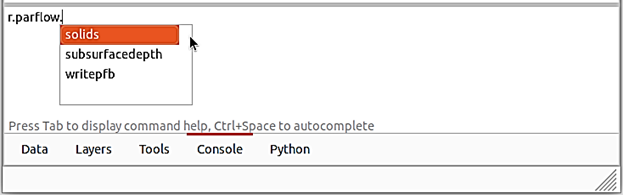
Command for calling the r.parflow module and its submodules.
r.parflow
r.parflow.solids
r.parflow.subsurfacedepth
r.parflow.writepfb
1.4. Starting a project in GRASS GIS
To open GRASS-GIS via the terminal, use the following command:
grass
Note
This section is under development.